Showing posts with label AAA. Show all posts

CCIE Security Lab: ACS command authorization

Last time, we set up the ACS and gave me level 15 access, and Bob level 3 access. Let's give Bob access to a few commands now.

Just to give you a heads up, there was a LOT of trial and error today. So, if you want to jump down to the bottom and just read the working set up part, I really won't be offended. But if you want to read the pitfalls I had setting this up, then carry on!

Unfortunately, since leaving it for a couple of days, ACS has lost communication with AD.

Ciasco ACS lost communication to AD

So, we'll give the ACS a quick reboot, and wait for the ACS services to start up again.

ACS AD working

Thats better!

We'll give Bob some commands to run. At the moment, he cannot do much:
AP-DNS#sh priv
Current privilege level is 3
AP-DNS#conf t
          ^
% Invalid input detected at '^' marker.

AP-DNS#configure terminal
          ^
% Invalid input detected at '^' marker.

AP-DNS#show running-config
             ^
% Invalid input detected at '^' marker.

AP-DNS#sh version
Cisco IOS Software, IOSv Software (VIOS-ADVENTERPRISEK9-M), Version 15.5(3)M, RELEASE SOFTWARE (fc1)
Technical Support: http://www.cisco.com/techsupport
Copyright (c) 1986-2015 by Cisco Systems, Inc.
Compiled Wed 22-Jul-15 23:04 by prod_rel_team

          
AP-DNS#
We add the commands under Policy Elements > Authorization and Permissions > Device Administration > Command sets.

ACS command authorization

Some need to be split up, so "show" is the command, and "version" is the argument, and so on. If we just had "show" then all the subcommands beneath it would be allowed (or so I am lead to believe, I have not tried this yet).

We then need to create a new Access Service, which we will call Bob, and base it on the existing Device Admin Command Auth service template:

ACS new access policy

On the next page as accept the defaults, and click on Finish:

ACS access policy

We get a little message pop up telling us that it's been created, asking is we want to modify the service selection:

ACS access policy prompt

Yes, we do:

As Bob will not have console access, we will only allow him to access through Telnet. The default Service Selection Policies are Radius and Tacacs, so let's add a new one for Bob:

ACS service selection policy

Click on Create:

We can't specify Telnet as the protocol, so we need to specify Tacacs here:

ACS service selection policy 2

Click on OK, then move it to the top of the list:

ACS rule ordering

Save the changes.

Under the Bob Access Service, we need to select the correct Identity:

ACS rule select user

Hopefully this is correct!

You should see it in the list:

ACS custom rules

Save the changes.

We then move down one to Authorization, and click Create:

I am not too fussed (at the moment) about the groups and NDG's, but we do need to select the command set we set up previously:

ACS rules

If we click OK here, we are told that we need to select at least one condition, so let's do that:

ACS identity group

The new policy is accepted:

ACS policies

Save the changes.

Let's test it and see if it works or not.
AP-DNS#sh priv
Current privilege level is 15
AP-DNS#sh ip int bri
Interface                  IP-Address      OK? Method Status                Protocol
GigabitEthernet0/0         10.1.4.101      YES NVRAM  up                    up      
GigabitEthernet0/1         unassigned      YES NVRAM  administratively down down    
GigabitEthernet0/2         unassigned      YES NVRAM  administratively down down    
GigabitEthernet0/3         unassigned      YES NVRAM  administratively down down    
AP-DNS#sh run int gi0/0
Building configuration...

Current configuration : 115 bytes
!
interface GigabitEthernet0/0
 ip address 10.1.4.101 255.255.255.0
 duplex full
 speed auto
 media-type rj45
end

AP-DNS#conf t
Enter configuration commands, one per line.  End with CNTL/Z.
AP-DNS(config)#int gi0/1
AP-DNS(config-if)#ip address 1.2.3.4 255.255.255.0  
AP-DNS(config-if)#no ip add
AP-DNS(config-if)#
No, it did not., we should not be able to add an IP address. We have level 15 access, and have more commands than we should do. We did, however, hit the correct rule:

ACS rule hits

So, not too bad, just not quite there!

We are getting the right user, so the Identity section is correct, we just need to set the Authorization correctly.

We only have one condition, what we need is a compound condition, like we had last time, so click on customize, and add Compound Condition. While we are at it, let's make life easier, and only include what we really need, so that we end up with something like this:

ACS customize

We can then edit the rule, so that it looks like this:

ACS customized rule

ACS command sets


ACS command set results

Hmmm, it's still letting him in at level 15, so I have missed something somewhere...

Turning to the TACACS logs we can see this:

ACS tacacs log

We recognize the username, and pick the Access Service "Bob". We get the right identity (Select-Bob), but the authorization policy matched rule says "Default". We should see it say "Bob-Rule".

I removed the Identity group from the Authorization rule, and got into Level 3:

ACS authorization rule simplified
AP-DNS#sh priv    
Current privilege level is 3
AP-DNS#sh ip route | b Gate
Gateway of last resort is 10.1.4.254 to network 0.0.0.0

S*    0.0.0.0/0 [1/0] via 10.1.4.254
      10.0.0.0/8 is variably subnetted, 2 subnets, 2 masks
C        10.1.4.0/24 is directly connected, GigabitEthernet0/0
L        10.1.4.101/32 is directly connected, GigabitEthernet0/0
AP-DNS#
We still have more commands that we should at our disposal.

But we are getting closer:

ACS tacacs log 2

We now get the correct "Selected Shell Profile" of LVL-3, and the Authentiation Policy Matched Rule shows "Bob-Rule", like we need it to. We just have more commands than we should! Some we do not have access to, like "show running-config":
AP-DNS#show running-config
show running-config
      ^
% Invalid input detected at '^' marker.

AP-DNS#
So what's the deal here?

Let's think about this a different way. I have a user logging in, who is assigned a privilege level, and is allowed to use a subset of commands. But what if these commands are denied by the privilege levels being too low? Should we set him higher, and then the commands will be limited?

Let's set it higher and find out:

ACS shell privilige levels

Nope, still did not work. Also, my own account is locked out.

Let's scratch the "Bob" Service Selection Rule and start again. Things worked much better last time, I got in with my account at level 15, and Bob got in at level 3, so maybe we should just edit what we used in the previous post.

I set the LVL-3 back to 3, and deleted the Bob Access Policy. The went into the Default Device Admin, and into Authorization. Clicked on Customize, and added "Command Sets". I then edited the Rule-LVL-3, and changed it to look like this:

ACS authorization command set

I ended up with this:

ACS levels

Does this work?
SW1#telnet 10.1.4.101
Trying 10.1.4.101...
Connected to 10.1.4.101.
Escape character is 'off'.


username: stuart
password: 

AP-DNS#sh priv
Current privilege level is 15
AP-DNS#sh ip int bri
Interface                  IP-Address      OK? Method Status                Protocol
GigabitEthernet0/0         10.1.4.101      YES NVRAM  up                    up      
GigabitEthernet0/1         unassigned      YES manual administratively down down    
GigabitEthernet0/2         unassigned      YES NVRAM  administratively down down    
GigabitEthernet0/3         unassigned      YES NVRAM  administratively down down    
AP-DNS#sh ip route | b Gate
Gateway of last resort is 10.1.4.254 to network 0.0.0.0

S*    0.0.0.0/0 [1/0] via 10.1.4.254
      10.0.0.0/8 is variably subnetted, 2 subnets, 2 masks
C        10.1.4.0/24 is directly connected, GigabitEthernet0/0
L        10.1.4.101/32 is directly connected, GigabitEthernet0/0
AP-DNS#exit
Connection closed by foreign host.
SW1#
SW1#telnet 10.1.4.101
Trying 10.1.4.101...
Connected to 10.1.4.101.
Escape character is 'off'.

username: dodgybob
password: 

AP-DNS#sh priv     
Current privilege level is 3
AP-DNS#sh ip int bri
Interface                  IP-Address      OK? Method Status                Protocol
GigabitEthernet0/0         10.1.4.101      YES NVRAM  up                    up      
GigabitEthernet0/1         unassigned      YES manual administratively down down    
GigabitEthernet0/2         unassigned      YES NVRAM  administratively down down    
GigabitEthernet0/3         unassigned      YES NVRAM  administratively down down    
AP-DNS#sh ip route
Codes: L - local, C - connected, S - static, R - RIP, M - mobile, B - BGP
       D - EIGRP, EX - EIGRP external, O - OSPF, IA - OSPF inter area 
       N1 - OSPF NSSA external type 1, N2 - OSPF NSSA external type 2
       E1 - OSPF external type 1, E2 - OSPF external type 2
       i - IS-IS, su - IS-IS summary, L1 - IS-IS level-1, L2 - IS-IS level-2
       ia - IS-IS inter area, * - candidate default, U - per-user static route
       o - ODR, P - periodic downloaded static route, H - NHRP, l - LISP
       a - application route
       + - replicated route, % - next hop override, p - overrides from PfR

Gateway of last resort is 10.1.4.254 to network 0.0.0.0

S*    0.0.0.0/0 [1/0] via 10.1.4.254
      10.0.0.0/8 is variably subnetted, 2 subnets, 2 masks
C        10.1.4.0/24 is directly connected, GigabitEthernet0/0
L        10.1.4.101/32 is directly connected, GigabitEthernet0/0
AP-DNS#conf t
conf t
   ^
% Invalid input detected at '^' marker.

AP-DNS#
Crap. Maybe we need more commands on the client:
AP-DNS(config)#aaa authorization commands 3 default group tacacs+ if-authenticated
AP-DNS(config)#aaa authorization commands 15 default group tacacs+ if-authenticated
AP-DNS(config)#aaa accounting commands 3 default start-stop group tacacs+
AP-DNS(config)#aaa accounting commands 15 default start-stop group tacacs+
AP-DNS(config)#
I can run "test rib route show 1" as me, not as Bob, so kind of working:
AP-DNS#test rib route show 1
Command authorization failed.

AP-DNS#
Other commands are also working as they should:
SW1#telnet 10.1.4.101
Trying 10.1.4.101...
Connected to 10.1.4.101.
Escape character is 'off'.

username: dodgybob
password: 

AP-DNS>en
Password: 
AP-DNS#sh priv
Current privilege level is 15
AP-DNS#sh ip route | b Gate
Gateway of last resort is 10.1.4.254 to network 0.0.0.0

S*    0.0.0.0/0 [1/0] via 10.1.4.254
      10.0.0.0/8 is variably subnetted, 2 subnets, 2 masks
C        10.1.4.0/24 is directly connected, GigabitEthernet0/0
L        10.1.4.101/32 is directly connected, GigabitEthernet0/0
AP-DNS#conf t
Enter configuration commands, one per line.  End with CNTL/Z.
AP-DNS(config)#int gi 0/2
AP-DNS(config-if)#ip add 12.12.12.12 255.0.0.0 
Command authorization failed.

AP-DNS(config-if)#
This is exactly what I want! So, why does "sh ip route" route work, when it shouldn't? Turns out that it's down to the privilege level. It helps to Google the crap out of it, and here is the doc I found: http://www.cisco.com/c/en/us/support/docs/security/secure-access-control-system/113590-acs5-tacacs-config.html. Let's see how things should have been done from the get-go.

ACS Command Authorization (working)

Before we go into the actual configuration of both the TACACS+ client, and the ACS, here is the proof:
SW1#telnet 10.1.4.101
Trying 10.1.4.101...
Connected to 10.1.4.101.
Escape character is 'off'.

username: dodgybob
password: 

AP-DNS>en
Password: 
AP-DNS#sh priv
Command authorization failed.

AP-DNS#sh ver | i ios
System image file is "flash0:/vios-adventerprisek9-m"
AP-DNS#sh ip int bri
Interface                  IP-Address      OK? Method Status                Protocol
GigabitEthernet0/0         10.1.4.101      YES NVRAM  up                    up      
GigabitEthernet0/1         unassigned      YES manual administratively down down    
GigabitEthernet0/2         unassigned      YES manual administratively down down    
GigabitEthernet0/3         unassigned      YES NVRAM  administratively down down    
AP-DNS#sh ip route
Command authorization failed.

AP-DNS#conf t
Enter configuration commands, one per line.  End with CNTL/Z.
AP-DNS(config)#int gi 0/2
AP-DNS(config-if)#ip add 12.12.12.12 255.255.255.0
Command authorization failed.

AP-DNS(config-if)#no shut
AP-DNS(config-if)#
AP-DNS(config-if)#shut
AP-DNS(config-if)#end
AP-DNS#exit
Connection closed by foreign host.
SW1#
This is using the exact commands we have permitted, and the others are denied. My own account still has full access. Now let's break down the working configuration!

The Lvl-3-Commands command set has not changed since we implemented it, but I have added a new one, for Level-15-Commands:

ACS working level 3


We are not specifying any commands, so the table is empty, but we are allowing any commands that are not in the table - which is everything.

The Shell profile has changed:

ACS working level 3 common tasks

Notice now the default privilege is 1. We also have a LVL-15 shell profile, which has the default set at 15:

ACS working level 15

That's it for the Policy Elements section.

We have just two service selection rules (the defaults):

ACS working service selection

The one we are interested in is Rule-2 for TACACS+, but this has not been edited, so we can head straight to the Default Device Admin. I have edited this to include "Group Mapping":

ACS working group mapping

We have two group mappings:

ACS working groups

The level-3 group connects the AD group "Network-Support" to the identity group "Level-3 Group":

ACS working level 3 group

The level-15 group is similar, connecting the Network-Admin group to the identity group "Level-15 Group" (or it would be if I had named it correctly):

ACS working level 15 group

The Identity has not changed, we are still bound to AD, as we were in the previous post. All the magic happens in the Authorization:

ACS working authorization

We have a rule for each of our levels. Both are similar:

ACS working authorization level 3

ACS working authorization level 15

The last bit to show is the Identity groups, and this is just two groups for us to use as containers, just give them a name and that's it:

ACS working identity groups

Although this took a lot of Googling to finally get the answer, there does seem to be a lot of conflicting information, most said that everyone (including the ones you want to limit) should get privilege level 15 to begin with, then we limit down the commands as needed. The Cisco doc linked above actually has it the other way around, we limit to begin with (privilege level 1), then increase as needed (by adding the commands we allow).

The client configuration is below:
AP-DNS#sh run | i aaa
aaa new-model
aaa authentication login default group tacacs+ local
aaa authorization config-commands
aaa authorization exec default group tacacs+ 
aaa authorization commands 1 default group tacacs+ local 
aaa authorization commands 3 default group tacacs+ 
aaa authorization commands 15 default group tacacs+ local 
aaa accounting commands 9 default start-stop group tacacs+
aaa session-id common
AP-DNS#
The flip side is that I have probably learnt more about ACS this way, than if things worked straight away. It is definitely better to get this kind of trial and error out of the way now, than in the exam. It's certainly not as "clean" as I would like it to be. ACS is highly configurable, and really this should all be done under a separate selection policy, but that's something to keep for later when I set up a new lab as preparation for the real thing.

I think we will return to ISE next, and look at web auth.
CCIE Security lab: A little AAA, a little MAB and a lot of patience

CCIE Security lab: A little AAA, a little MAB and a lot of patience

I had a little bit of time today, between dropping the kids off at nursery and picking the wife up from the airport, so I thought I'd have a little play with my new 3750-X switch, which arrived yesterday. It's the biggest expense so far in this study, and cost £899, so I really hope it's suitable for the CCIE Security!

It came with IOS 12.2, so the first thing to do is to upgrade to a newer version.
3750X#sh ver | i IOS
Cisco IOS Software, C3750E Software (C3750E-UNIVERSALK9-M), Version 12.2(55)SE3, RELEASE SOFTWARE (fc1)
3750X#
Once I had added the commands for "ip ftp username" and "ip ftp password", I was able to load the tar file from FTP:
3750X#archive download-sw /overwrite /reload ftp://192.168.1.76/c3750e-universalk9-tar.150-2-SE8.tar
The upgrade process takes a while, probably about 20-30 mins, but once it's done, we have a much newer version:
3750X#sh ver | i IOS
Cisco IOS Software, C3750E Software (C3750E-UNIVERSALK9-M), Version 15.0(2)SE8, RELEASE SOFTWARE (fc1)
3750X#
I also bumped up the license, using the Right To Use method:
3750X#show license
Index 1 Feature: ipservices
        Period left: Life time
        License Type: PermanentRightToUse
        License State: Active, In Use
        License Priority: High
        License Count: Non-Counted

Index 2 Feature: ipbase
        Period left: Life time
        License Type: Permanent
        License State: Active, Not in Use
        License Priority: Medium
        License Count: Non-Counted

Index 3 Feature: lanbase
        Period left: 0  minute  0  second

3750X#
The next part was to make sure that I had access to the commands I would be needing later on, so, let's have a look for "mab", "authentication" and "dot1x" under the interface commands:
3750X(config)#int gi 3/0/20
3750X(config-if)#?
Interface configuration commands:
  aaa                     Authentication, Authorization and Accounting.
  arp                     Set arp type (arpa, probe, snap) or timeout or log options
  auto                    Configure Automation
  bandwidth               Set bandwidth informational parameter
  bgp-policy              Apply policy propagated by bgp community string
  carrier-delay           Specify delay for interface transitions

3750X(config-if)#auth
3750X(config-if)#auth?
% Unrecognized command
3750X(config-if)#mab
                   ^
% Invalid input detected at '^' marker.

3750X(config-if)#exi
Nothing there. Let's start by enabling "aaa new-model". This enables the more granular functions of AAA, and is exactly what we are looking for. Does this help now?
3750X(config)#aaa new-model
3750X(config)#int gi 3/0/20
3750X(config-if)#?
Interface configuration commands:
  aaa                     Authentication, Authorization and Accounting.
  arp                     Set arp type (arpa, probe, snap) or timeout or log options
  auto                    Configure Automation
  bandwidth               Set bandwidth informational parameter
  bgp-policy              Apply policy propagated by bgp community string
  carrier-delay           Specify delay for interface transitions
  cdp                     CDP interface subcommands
  channel-group           Etherchannel/port bundling configuration
  channel-protocol        Select the channel protocol (LACP, PAgP)
  crypto                  Encryption/Decryption commands
  cts                     Configure Cisco Trusted Security
  dampening               Enable event dampening
  datalink                Interface Datalink commands
  default                 Set a command to its defaults
  delay                   Specify interface throughput delay
  description             Interface specific description
  down-when-looped        Force looped interface down
  duplex                  Configure duplex operation.
  eou                     EAPoUDP Interface Configuration Commands
  exit                    Exit from interface configuration mode

3750X(config-if)#exi
Nothing yet. We have not done with global configuration mode yet. We need to specify a few AAA commands:
3750X(config)#aaa authentication ?
  arap             Set authentication lists for arap.
  attempts         Set the maximum number of authentication attempts
  banner           Message to use when starting login/authentication.
  dot1x            Set authentication lists for IEEE 802.1x.
  enable           Set authentication list for enable.
  eou              Set authentication lists for EAPoUDP
  fail-message     Message to use for failed login/authentication.
  login            Set authentication lists for logins.
  onep             Set authentication lists for ONEP
  password-prompt  Text to use when prompting for a password
  ppp              Set authentication lists for ppp.
  sgbp             Set authentication lists for sgbp.
  suppress         Do not send access request for a specific type of user.
  username-prompt  Text to use when prompting for a username

3750X(config)#aaa authentication dot default group radius
3750X(config)#aaa authorization network default group radius
3750X(config)#aaa accounting dot1x default start-stop group radius
3750X(config)#
Now can we see the commands?
3750X(config)#int gi 3/0/20
3750X(config-if)#?
Interface configuration commands:
  aaa                     Authentication, Authorization and Accounting.
  arp                     Set arp type (arpa, probe, snap) or timeout or log options
  auto                    Configure Automation
  bandwidth               Set bandwidth informational parameter
  bgp-policy              Apply policy propagated by bgp community string
  carrier-delay           Specify delay for interface transitions
  cdp                     CDP interface subcommands
  channel-group           Etherchannel/port bundling configuration
  channel-protocol        Select the channel protocol (LACP, PAgP)
  crypto                  Encryption/Decryption commands
  cts                     Configure Cisco Trusted Security
  dampening               Enable event dampening
  datalink                Interface Datalink commands
  default                 Set a command to its defaults
  delay                   Specify interface throughput delay
  description             Interface specific description
  down-when-looped        Force looped interface down
  duplex                  Configure duplex operation.
  eou                     EAPoUDP Interface Configuration Commands
  exit                    Exit from interface configuration mode
Not yet. Remember by default the switch port will be in trunk mode, and for AAA to work in the manner we want it to, we need it to be an access port:
3750X(config-if)#switchport access vlan9
% Access VLAN does not exist. Creating vlan 9
3750X(config-if)#switchport mode access
3750X(config-if)#?
Interface configuration commands:
  aaa                     Authentication, Authorization and Accounting.
  arp                     Set arp type (arpa, probe, snap) or timeout or log options
  authentication          Auth Manager Interface Configuration Commands
  auto                    Configure Automation
  ...
  description             Interface specific description
  dot1x                   Interface Config Commands for IEEE 802.1X
  down-when-looped        Force looped interface down
  ...
  logging                 Configure logging for interface
  mab                     MAC Authentication Bypass Interface Config Commands
  mac                     MAC interface commands
  macro                   Command macro
  macsec                  Enable macsec on the interface
  ...
 
3750X(config-if)#
Great, now we can see the authentication, dot1x and mab commands! Let's set it up:
3750X(config-if)#authentication ?
  control-direction  Set the control-direction on the interface
  event              Set action for authentication events
  fallback           Enable the Webauth fallback mechanism
  host-mode          Set the Host mode for authentication on this interface
  linksec            Configure link security parameters
  open               Enable or Disable open access on this port
  order              Add an authentication method to the order list
  periodic           Enable or Disable Reauthentication for this port
  port-control       Set the port-control value
  priority           Add an authentication method to the priority list
  timer              Set authentication timer values
  violation          Configure action to take on security violations

3750X(config-if)#authentication port-control auto
3750X(config-if)#authentication host-mode multi-auth
3750X(config-if)#authentication order mab dot1x
3750X(config-if)#authentication port-control auto
3750X(config-if)#authentication periodic
3750X(config-if)#mab
3750X(config-if)#dot1x pae authenticator
3750X(config-if)#spanning-tree portfast
%Warning: portfast should only be enabled on ports connected to a single
 host. Connecting hubs, concentrators, switches, bridges, etc... to this
 interface  when portfast is enabled, can cause temporary bridging loops.
 Use with CAUTION

%Portfast has been configured on GigabitEthernet3/0/20 but will only
 have effect when the interface is in a non-trunking mode.
3750X(config-if)#
Whilst this was purely a test, and I will probably be using a very different setup later on, the take away from this is about process more than anything else:

  • Enable AAA new-model
  • Set up AAA (authentication, authorization, accounting)
  • Set interface to be an access-mode port
  • Configure authentication on the interface

This is one of those things that, in an exam environment, if the process is not followed then you'll be spending more time fixing and troubleshooting, than actually configuring. Practice does make perfect, but process really does help.

This was just a quick play about, and once the switch is connected to the topology, there will be a longer post, hopefully explaining what all these commands actually mean.

Freeradius and Cisco ASAs - Proper separation of roles!

I wrote some time ago about separating read-only access from admin access to Cisco ASAs using Microsoft NPS. It worked in theory, but a problem was found that an AD user who was not a member of either OU could still authenticate to the ASA using ASDM at level 15. Clearly this was less than ideal. Check out the link though as it shows how to set up the ASA to use Radius and we'll need that in a while.

I bounced around some more ideas, tested things out using Microsoft NPS, and even tried TACACS using Tac-plus. Still no dice. I went back to the idea of using Radius, mainly because of the fact that I didn't want to have to run two systems to do the same thing, NPS got us most of the way there, TACACS would probably have finished the job, but requires a lot more investment in time, knowledge and money. Coupled with the fact that the IPS modules in our ASAs only support RADIUS I knew it was time to head back to the RADIUS idea and try and put this to bed.

Microsoft NPS doesn't cut the mustard though. Yes it's a good product, but clearly not the right product for this scenario.

Freeradius on the other hand offered something new, and I stumbled across the idea of using it from this very excellent post here. Our set up is slightly different though, as we are using Microsoft AD as the LDAP backend, and require the use of AD groups as well as nesting of access control.

To explain, we have two users; npstest is a read-only account. It should have access to the ASA through SSH and through ASDM, but only at a maximum of level 3. It is a member of the AD group "sec-fw-readonly". My own account should have full access on both SSH and ASDM and is a member of "sec-fw-administrator".

We start with a Centos box and install freeradius using the command:
yum install freeradius*
Once free radius is installed we need to head to the folder /etc/raddb/ and from there into the modules directory (/etc/raddb/modules). The first file we neeed to edit is the ldap file (vi ldap) and set our details for connecting to the AD server:
server = "adserver.domain.local"
identity = "cn=ldapreadonly,ou=Service Accounts,dc=domain,dc=local"
password = passw0rd
basedn = "dc=domain,dc=local"
filter = "(&(objectclass=user)(objectcategory=user)(userPrincipalName=%{%{Stripped-User-Name}:-%{User-Name}}*))"
groupmembership_attribute = "memberOf"
The first line specifies the domain controller to connect to, and the next line specifies the account to use, the third line is the password for that account. The basedn is where freeradius should start searching for user accounts, and the filter does some funky mapping of AD attributes to freeradius attributes. The groupmembership_attribute will be needed for the reading of AD groups which we will need later on.

Lastly for this file is to uncomment these two lines:
chase_referrals = yes
rebind = yes
If you don't uncomment those then you will get an "operations error" message when trying to search.

Next we must go back a level and into the sites-available file (/etc/raddb/sites-available) and edit the file "inner-tunnel". In the authorize section comment out (using a #) the word "files", and uncomment the word "ldap". In the authenticate section again comment out the "files" line and uncomment the ldap section so it looks like this:
Auth-Type LDAP {
    ldap
}
Now we can edit the "default" file in the same folder, and make the exact same changes as the inner-tunnel file above.

Once this is done we can start defining our clients, this is in the file /etc/raddb/clients.conf and add your ASA in:
client 192.168.2.253 {
        secret = test123
        shortname = testasa
        nastype = cisco
}
With the secret being the shared secret you are going to use on your ASA.

In order to get both SSH and ASDM working as we need them to we need to uncomment one line in /usr/share/freeradius/dictionary, look for the following:
#
#        The Cisco VPN300 dictionary is the same as the altiga one.
#        You shouldn't use both at the same time.
#
#$INCLUDE dictionary.cisco.vpn3000
Just uncomment the $INCLUDE dictionary.cisco.vpn3000, and save the file.

Before we set up our ASA we are going to set up our group access in Radius, and to do that we go back into the default file. In the post-auth section I added the following:
if (LDAP-Group == "sec-fw-Administrator") {
        update reply {
                Service-Type = "Administrative-User",
                Cisco-AVPair = "shell:roles=network-admin",
                Cisco-AVPair += "shell:priv-lvl=15",
                CVPN3000-Privilege-Level = 15
                }
}
elsif (LDAP-Group == "sec-fw-readonly") {
        update reply {
                Service-Type = "Administrative-User",
                Cisco-AVPair = "shell:roles=network-operator",
                Cisco-AVPair += "shell:priv-lvl=1",
                CVPN3000-Privilege-Level = 3
                }
}
else {
                reject
}
Here we are specifying that a member of sec-fw-administrator should be an administrative user, with privilege level 15. The network-admin line is ready for when we switch our Nexus to use freeradius (as previously we set our Nexus to use Microsoft NPS as well). If our user is not a member of sec-fw-administrator then we need to see if they are a member of sec-fw-readonly, it they are then they should get into the ASA but only at a maximum of level 3. Finally if they are not a member of either the connection attempt should be rejected.

Finally we can switch our ASA to use freeradius, the config looks like this:
aaa-server FreeRadius protocol radius
aaa-server FreeRadius (Inside) host 192.168.3.121
 key test123
 authentication-port 1812
 accounting-port 1813
aaa authentication ssh console FreeRadius LOCAL
aaa authentication enable console FreeRadius LOCAL
aaa authentication http console FreeRadius LOCAL
aaa accounting enable console FreeRadius
aaa accounting ssh console FreeRadius
aaa authorization exec authentication-server
Now we can test. Firstly by logging in with my account:
login as: sfordham
sfordham@192.168.2.253's password:
Type help or '?' for a list of available commands.
testasa> sh curp
Username : sfordham
Current privilege level : 1
Current Mode/s : P_UNPR
testasa> en
Password: *********
testasa# sh curp
Username : sfordham
Current privilege level : 15
Current Mode/s : P_PRIV
testasa#
And with ASDM:

Next we test with a readonly level account:
login as: testnps
testnps@192.168.2.253's password:
Type help or '?' for a list of available commands.
testasa> sh curp
Username : testnps
Current privilege level : 1
Current Mode/s : P_UNPR
testasa> en
Password: ***********
testasa# sh curp
Username : testnps
Current privilege level : 3
Current Mode/s : P_PRIV
testasa#
And with ASDM:

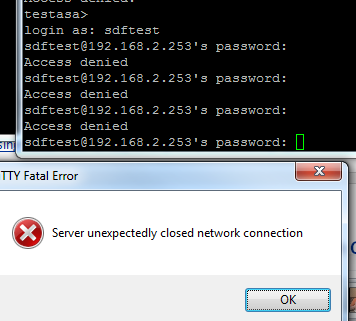
Lastly with an account that should be rejected:


Finally we have a working solution!

Separating Monitor only and Admin access to Cisco ASDM (ASA) for users authenticated via LDAP

Hopefully this will be the last topic about AAA authentication and Cisco, not because its either unimportant or irrelevant to the CCIE, just because I have spent ages delving into AAA with setting up AAA access to IPS modules on ASA, or catalyst switches, or Nexus switches, and finally I have worked out how to separate admin and read-only access to Cisco ASDM for ASA's via AAA using LDAP.
Continuing the general network security implementation my role centres around, I need to keep a distinct separation of duties as part of our PCI compliance, so when the ticket came in to set up read-only ASDM access to our ASA firewalls for our network operators, I thought, fine, no problem. We already had them authenticate via LDAP both for administration and for AnyConnect VPN access, so it should not be too hard, and as we already have radius set up for the IPS modules and for the Nexus and Catalyst switches, I have two potential methods of implementation available to get this working.

Well, actually it took me longer than I had expected. Through testing I used my own account, and a test account called testnps. My account is a member of sec-fw-admin, and the test account is a member of sec-fw-ro.

Radius as we have seen in previous posts offers the Cisco-AV-Pair which we have successfully used, but try as I might, no matter how successful with getting it to work as required on the CLI, ASDM would always drop the user straight into level 15 access (full rights), or sometimes, no access at all.

So I turned back to LDAP, as I want to avoid implementing TACACS+ for this sole purpose. LDAP has already been working successfully so far, but then its just looking at one security group, an the expected result is either permit or deny, based on whether the user is found in that group. Extending this should therefore not be too hard.

The issues arose from the fact that we have differing levels that need to be addressed, so lets have a look at these.

IETF-Radius-Service-Type

The IETF-Radius-Service-Type can be one of a three values, either 6 which is Administrative and allows full access, 7, which is NAS-Prompt, whereby the user cannot access privileged EXEC mode through the enable command, or 5 which is "Outbound" - meaning no administrative access at all. This page from Cisco's website gives some more information.

ASDM defined user roles

These can be either be 15, offering full access, 5, which is read-only, and 3 which is Monitor Only and only allows access to the monitoring section. To set up the predefined roles from within ASDM click on the button labelled "Set ASDM Defined User Roles" under Configuration > Device Management > Users/AAA > AAA Access > Authorization.

So at the moment I had, in my LDAP attribute map, the IEFT-Radius-Service-Type which was mapped to memberOf, and in turn this references either the sec-fw-admin group at level 7, or the sec-fw-ro at level 6.

TestASA# sh run ldap attribute-map test4
map-name  memberOf IETF-Radius-Service-Type
map-value memberOf "cn=sec-FW-Admin,OU=Security Groups,DC=802101,DC=local" 6
map-value memberOf "cn=sec-fw-ro,OU=Security Groups,DC=802101,DC=local" 5

But this still lets a member of sec-fw-ro in at level 15 on ASDM and the CLI. If you try to re-map memberOf to another value, which would have been the obvious and easy choice, then you quickly find that you can't map it twice to two different attributes.


ASDM attribute mapping


Eventually I found this article on the Cisco website, which pointed me in the right direction. Now the solution in the article is this:


ciscoasa# sh run ldap attribute-map LDAPreadonly
map-name memberOf IETF-Radius-Service-Type
map-value memberOf "CN=Account Operators,CN=Builtin,DC=MCS55,DC=com" 6
map-name sAMAccountName Privilege-Level
map-value sAMAccountName "ashishv" 5
ciscoasa#

There are two issues with this.

One: Members not explicitly stated will be denied access
Two: It does not scale well

So lets solve the second part first.

The method above would mean that for every user with admin access, or with monitor access a seperate entry needs to be explicitly set within the attribute map. This is fine if you only have maybe one, or two, of each and only one firewall, but when you organization scales this means that with every staff change (staff leaving, new staff starting etc) you have to change the attribute map, and potentially with a large number of firewalls this could take some time.

I found a list of AD attribute fields to use, and found one that would usually be unused, and therefore fit for purpose. Hidden away within AD is a comment field. We can find this under Attribute Editor  after enabling Advanced view in ADUC. 


Enable advanced view in ADUC


I added the comment fw-ro for the testnps account.


AD comment field


So now we can, for the appropriate users add this comment in for use in the attribute map.

So implementing this with a slight change to:

TestASA# sh run ldap attribute-map test4
map-name  comment Privilege-Level
map-value comment fw-ro 5
map-name  memberOf IETF-Radius-Service-Type
map-value memberOf "cn=sec-FW-Admin,OU=Security Groups,DC=802101,DC=local" 6
map-value memberOf "cn=sec-fw-ro,OU=Security Groups,DC=802101,DC=local" 5

Results in the testnps account being able to log into ASDM, at the correct level (5), but my own account is denied access:


ASDM privilege level denied


So this takes us back to the first issue, and we must therefore add a second attribute:

TestASA# sh run ldap attribute-map test4
map-name  comment Privilege-Level
map-value comment fw-ro 5
map-value comment fw-rw 15
map-name  memberOf IETF-Radius-Service-Type
map-value memberOf "cn=sec-FW-Admin,OU=Security Groups,DC=802101,DC=local" 6
map-value memberOf "cn=sec-fw-ro,OU=Security Groups,DC=802101,DC=local" 5

I added the comment "fw-rw" to my account, and this works in the desired way, the testnps account has level 5 access and my own account has full admin access at level 15.

So now we have a method to separate admin and monitor only access to the firewall, and it is also scalable within the enterprise environment.


Cisco Nexus and AAA authentication using Radius on Microsoft 2008 NPS

In a previous post I wrote about how to integrate Cisco IPS modules with Microsoft 2008 NPS server, for Radius authentication.

Now we are going to cover how to integrate Cisco Nexus with radius. The format is very similar to the IPS setup, so it may be worth having a read of the first post to get an idea.

We start with some basic assumptions, and one caveat:

Your basic Nexus switch configuration is already in place and can ping your NPS server (via the management vrf)
You already have an NPS server in place serving clients.

I am using the Cisco Titanium Nexus 7000 emulator (but the same process should apply to the NX5000 series, I need to do this on real Nexus 5000's so if there are any differences I will update this post).

Nexus client and profile settings on Microsoft 2008 NPS

We start by adding a client onto the NPS, we give it a friendly name, specify the IP address and set the radius secret (here I am using nxnps123). I have also set the vendor name to Cisco.


Cisco NPS as a Radius client

Cisco NPS as a Radius client

And now we have a client set up:


Cisco NPS as a Radius client

Now we create a policy to map access to the client. I have called this "TestNexus Admin", and the plan will be to have a read only policy added later on.


Nexus Radius policy in NPS

In the next window I start to specify the conditions, and will use the security group "sec-FW-admin", so click on Add to add a condition and select "Windows Groups"


Specifying windows groups for NPS

Now you can add your specific groups.
Next I add the Client Friendly Name, and use the same name I called the client:


Specifying client friendly name in NPS

We keep the default of Access granted and move on till we see the "Configure Authentication Methods", here we select just PAP and SPAP:

Cisco Radius authentication PAP

We can skip the "Configure Restraints" window and move on to "Configure Settings". Here we remove the two options under "Standard"

AAA radius properties

And now we can add a Vendor Specific entry:


Cisco AV pair Nexus radius

And for this entry we will use "shell-roles=*admin" (before anyone says this is wrong, please read the rest of the post to see why I havn't corrected this yet...)


Cisco av-pair NPS Nexus

And that's all the configuration on the Microsoft side (for the moment at least).

Nexus Radius setup and AAA Authentication

Just in case you havn't set up the basics on the Nexus the screenshots below show how to set the management vrf IP, and default routing, as well as confirming reachability to the NPS server:

Nexus basic setup for management

Notice here that we have to specify vrf management in the ping command for it to work

Specifying routing in Cisco Nexus

Now we know that we can "talk" to the NPS box we can start setting up the radius parts.

We start by setting the radius key, it should match the key used to set up the client under NPS (again here we are using "nxnps123"). The 0 next to "key" means that its unencrypted.

Then we set the host (which we should have at least two of for redundancy), and create an aaa group and add the server to this. the last command tells the Nexus to use the management vrf to communicate with the server.


Cisco Nexus radius setup

Now we can tell the Nexus to use radius for authentication, and we also tell it to keep track of errors:


Cisco Nexus AAA authentication setup

Finally, just in case our Radius server is down for any reason, the Nexus should use its local database for login:


Cisco Nexus AAA authentication local fallback
Now we can test login!


Using radius for authentication on Cisco Nexus
It works!

But we can't stop here. Like I pointed out earlier there was an issue with the shell:roles command within the NPS setup.

With the existing configuration we try saving the config:


Cisco Nexus permission denied

So lets look at the privilege levels:


Cisco Nexus privilege levels

Well, -1 was never a good thing in my book. So I changed the AV-pair to "shell:roles=*"network-admin vdc-admin"", logged out, and back in again:


Cisco Nexus copy run start

Now although the displayed privilege level is still showing -1, we can save the config.

Lastly I copied the profile in NPS, changed the Windows Group to one that has people we want with just read only access in it, and changed the role to network operator:


Cisco Nexus radius read-only network-operator

And again we test, this time we are expecting the copy run start to fail


Cisco Nexus Network Operator privilege

Which it does, but they can still issue show commands, so the achieves exactly what is required.

Fallback on Nexus

Lastly we need to make sure that if the radius server is down, we can still get in. I stopped the NPS service and tried logging in. Login failed. I reconnected and tried logging in with the admin username and password, and got in:


Fallback to local authentication if Radius server is down