Showing posts with label Cisco. Show all posts

Cisco ASA firewall basics

I am nearly at the stage for configuring the ASAs in my CCIE Security lab, well, the HQ part at least.

Before we do that though it would probably be a good idea to go through some of the more basic aspects of the Cisco ASA firewall.

Cisco ASA firewall fundamentals

Cisco ASA models

Cisco ASAs come in a two flavors, physical and virtual. The virtual one is relatively new, and is known as the ASAv ("v" for virtual, it makes sense). The physical range of ASA firewalls (5500 series) has been around for a number of years, and replaced the PIX firewalls.

The current product range starts with the 5505, which would be your typical SOHO router firewall combo, and then the range moves into the -X models, starting with the 5506-X.

The X denotes that these models are the next-generation of ASA, and come with FirePOWER, which we'll look at in a different post. So, what is the difference between the 5505 and the 5506-X? It's pretty big actually.

Despite the minor number jump, the 5506 is a far more uprated device. Here are some of the comparative stats from the Cisco website:

Cisco ASA Model

ASA 5505 / Security Plus

ASA 5506-X / Security Plus

Image
Cisco ASA 5505
Cisco ASA 5506-X
Stateful inspection throughput (max) Up to 150 Mbps 750 Mbps
Maximum concurrent sessions 10,000 / 25,000 20,000/50,000
Packets per second (64 byte) 85,000 246,900
Maximum site-to-site and IPsec IKEv1 client VPN user sessions 10 / 25 10 / 50
Maximum Cisco AnyConnect IKEv2 remote access VPN or clientless VPN user sessions 25 2 / 50
VLANs 3 (trunking disabled) / 20 (trunking enabled) 5 / 30
High-availability support Stateless A/S only (active / standby) A / S
Integrated I/O 8-port FE with 2 Power over Ethernet (PoE) ports 8 x 1 Gigabit Ethernet (GE)

As you can see, you can push a far greater amount of traffic through the 5506-X than the 5505.

Prices for the 5505 start at about £250, and go up to around £800, the one above falls into the latter price range. The 5506-X range is not much more expensive, prices start at around £400.

As you move higher up the model line, naturally the prices start to enter enterprise kind of money (lots of zeros at the end). But, again, you do get more bang for your buck.

Sizing a firewall is tricky business. You need to look at the number of users you have, both on site and remote, the number that will be connecting via VPN, both site to site, and client VPN, such as AnyConnect. You also need to look at what kind of application traffic the firewall will be passing.

For example the 5512-X could easily support around 2000 users, with around 500 of those being remote users. Prices for this are around £2300.

Basic Cisco ASA firewall configuration

Cisco ASA firewalls are anything but basic. But don't be put off by their complexity. Getting them up and running can be done in a short space of time.

Let's start off with our interfaces, and how they relate to firewall function. A firewall separates traffic between different areas. The ASA interfaces can be assigned to different areas, we will need one on the outside, connecting us to our upstream service provider, one on the inside for our users, and maybe one for our public facing servers, which is known as a DMZ, or Demilitarised Zone.

In our example below, we have an ISP, our ASA (ASAv), and our client (user) machine:

Cisco ASA basic configuration
We will, for a little while, need to use VNC to control the ASA.

Our Gi0/0 interface will be our "Outside" interface, and our Gi0/1 interface will be our "Inside" interface. There is a reason we name them these, and that is because the ASA will automatically assign a security level to these interfaces, as we will see in a moment.
Let's get started.
ISP:
Router(config)#ho ISP
ISP(config)#int fa0/0
ISP(config-if)#ip add 10.1.1.1 255.255.255.252
ISP(config-if)#no shu
ISP(config-if)#int lo0
ISP(config-if)#ip add 8.8.8.8 255.255.255.255    
ISP(config-if)#ip route 0.0.0.0 0.0.0.0 10.1.1.2
ISP(config)#
User-PC:
Router(config)#ho User1
User1(config)#int fa0/0
User1(config-if)#ip add 192.168.1.17 255.255.255.0
User1(config-if)#no shu
User1(config-if)#ip route 0.0.0.0 0.0.0.0 192.168.1.254
User1(config)#

Cisco ASA interface configuration

OK, let's configure the ASA up, starting with setting the hostname and the outside interface:

Configuring outside interface on a Cisco ASA

Now we configure the Inside interface:

Configuring inside interface on a Cisco ASA

Notice how the ASA will set the security levels according to the interface names, with 0 for the Outside interface, and 100 for the Inside interface. 0 is a "least trusted" level and 100 is the "most trusted" level. We can set these manually if we want to, using the command "security-level <0-100>".

At this stage we should have connectivity from the User1 "PC", and from the ISP:
User1#ping 192.168.1.254 
Type escape sequence to abort.
Sending 5, 100-byte ICMP Echos to 192.168.1.254, timeout is 2 seconds:
.!!!!
Success rate is 80 percent (4/5), round-trip min/avg/max = 1/7/12 ms
User1#

ISP#ping 10.1.1.2
Type escape sequence to abort.
Sending 5, 100-byte ICMP Echos to 10.1.1.2, timeout is 2 seconds:
!!!!!
Success rate is 100 percent (5/5), round-trip min/avg/max = 8/12/28 ms
ISP#

The ASAv needs to be aware of the 8.8.8.8 "server", so we can create a default route on the ASAv to do this:

Configuring a default route on an ASA

Notice that unlike traditional IOS based devices, the ASA is actually a little less clever here, we need to specify the interface, or direction, that the route affects.

Allowing SSH access to Cisco ASA

Now, let's set ourselves up to manage the ASA from our User1 "PC". Firstly we need to generate our general-keys, using the command "crypto key generate rsa modulus 1024", ideally (in production), you should use 2048:

Configuring SSH on Cisco ASA

Notice that I also set the domain name, and the version.

The rest of the commands are being shown through show commands, once I have successfully connected from User1:
User1#ssh -l stu 192.168.1.254
Password: 
Type help or '?' for a list of available commands.
ASAv> en
Password: ******
ASAv# sh run | i username
username stu password QFwZO2R.a0n6RaA/ encrypted privilege 15
ASAv# sh run | i aaa
aaa authentication ssh console LOCAL 
aaa authentication enable console LOCAL 
ASAv# sh run | i ssh
aaa authentication ssh console LOCAL 
ssh stricthostkeycheck
ssh 192.168.1.0 255.255.255.0 Inside
ssh timeout 5
ssh version 2
ssh key-exchange group dh-group1-sha1
ASAv# sh run | i management
 management-only
management-access Inside
ASAv#
We will need a user to connect with. Notice the the password gets automatically encrypted. We have two AAA commands, one for SSH access, another for enable level access. We also enable ssh access from the 192.168.1.0/24 subnet, and have allowed management access from anything behind the Inside interface.

Now we can work a little easier. The final step it to get the User1 PC to access the 8.8.8.8 server out on the Internet. To do this the ASA needs to perform a bit of Network Address Translation (NAT).

Internet access for inside hosts on a Cisco ASA

Let's give access for our inside hosts. To do this does not take many steps, we just need to create a network to match everything, and then NAT this:
ASAv(config)# object network OBJ_OUTSIDE
ASAv(config-network-object)# subnet 0.0.0.0 0.0.0.0
ASAv(config-network-object)# exi
ASAv(config)# nat (Inside,Outside) source dynamic OBJ_OUTSIDE interface
ASAv(config)# 
Although ping does not work, telnet does:
ASAv(config)# exi
ASAv# exi
[Connection to 192.168.1.254 closed by foreign host]
User1#ping 8.8.8.8
Type escape sequence to abort.
Sending 5, 100-byte ICMP Echos to 8.8.8.8, timeout is 2 seconds:
.....
Success rate is 0 percent (0/5)
User1#telnet 8.8.8.8
Trying 8.8.8.8 ... Open


Password required, but none set

[Connection to 8.8.8.8 closed by foreign host]
User1#
We can prove that this works, by setting a password on the ISP router:
ISP(config)#line vty 0 4
ISP(config-line)#password 802101
ISP(config-line)#exi
ISP(config)#enable password 802101
ISP(config)#

User1#telnet 8.8.8.8
Trying 8.8.8.8 ... Open


User Access Verification

Password: 
ISP>en
Password: 
ISP#who
    Line       User       Host(s)              Idle       Location
   0 con 0                idle                 00:00:24   
*  2 vty 0                idle                 00:00:00 10.1.1.2

  Interface    User               Mode         Idle     Peer Address

ISP#
So, you can see that the ASAv has performed NAT for User1. We can check this on the ASAv:


So, telnet worked fine, what about http requests? Well, the ASAv will perform NAT (well, PAT to be precise) for us. We can see this by setting up the ISP router to be an HTTP server:
ISP(config)#ip http server
ISP(config)#

User1#telnet 8.8.8.8 80
Trying 8.8.8.8, 80 ... Open
get
HTTP/1.1 400 Bad Request
Date: Sat, 05 Sep 2015 14:28:30 GMT
Server: cisco-IOS
Accept-Ranges: none

400 Bad Request
[Connection to 8.8.8.8 closed by foreign host]
User1#

As you can see, it does not take long to get up and running with an ASA. Now that we have had our little introduction to ASAs, I can start configuring them up in my lab (in a day or two).

New Networking forum now live

Hi all!

I have now added a forum to the website. It's primary for Cisco certifications, from CCNA through CCNP, up to CCIE.
Cisco Certification forum

I can (and will) add other, relevant, topics, so do please feel free to request anything you'd like to see.

It is for free discussion of all things networking, including virtualization (UNetLab, GNS3 etc) and there will be a place for off-topic discussion (keep it clean).


Please note that it is not for asking, or posting, dumps or copyrighted material. 

You can visit the forum by clicking the link in the navigation bar above, or by visiting http://forum.802101.com/.

Thanks!

Riddle: What has two thumbs and five digits?

You can probably guess that I got "that email" from Cisco this morning. So it's the moment of truth.

Did I pass or fail?

I woke up this morning feeling tired. One of my boys climbed into bed with me, wriggled around for a bit then made me get up to make him breakfast. The other one is still asleep, unusual for him, but we did stay out really late last night. Part of me wanted to stay in bed, after all in a Schrodinger's cat kind of way, if I don't know that I have failed, that means I have passed, right? I think that's how it works.

Nevertheless, I am still nervous about the result.

Nervous on Airplane

I was not sure whether I'd get an email from Cisco by now, mainly because it is the weekend, so I would have allowed until Monday to hear back.

They sent the email at just after 5am this morning.

CCIE results

The email itself just directs you to the CCIE webpage.
This is what greets me:

CCIE results

Clicking on the "Pass" link takes us to another page:

CCIE results

So there we go. What's got two thumbs and five digits?

This guy.

I am CCIE.

CCIE certified logo

I did it. I would like to know that actual scores, but now they are irrelevant.

I have the digits. Mission accomplished.

It's time to celebrate today. I can rest, I can enjoy time with my family again. I can spend my holiday (at the end of the month) relaxing and enjoying. This will be nice as I am sure my family would prefer me not to be studying for the fourth year in a row when we are on holiday.

I feel so relieved now. I have got some friends coming over later for a BBQ, so it's time to kick back and relax.

Once again I'd like to thank all of you who have encouraged me along this journey. It's not over yet, but I have reached a massive milestone.

So thank you guys for the support. I have the digits, and don't feel like I have let you guys down, as well as myself.

Time to go outside and smell the roses!

Got bored. Got CCDA. CCDP next.

Studying for CCIE can get a little bit boring. It's a fairly constant rotation of reading, more reading, re-reading, labbing, bit more labbing, and then loads more labbing.

So, I decided to take a little side-road down this long path towards CCIE-dom, and get my CCDP. Because I don't have the CCIE yet (which would fulfil one of the prerequisites), I have got to do the CCDA first. FYI the prerequisites are a valid CCENT, CCNA Routing and Switching, or any CCIE.

So I did it.

Arrived about half an hour early, did all the paper work and pictures, triple signatures, sat the exam, and passed.


I really do not think that it is a hard exam - certainly not when I am in the midst of CCIE-study. There are a number of questions about routing protocol specifics, which are very easy, many of the questions just need a bit of logic to get through them, the rest were all answered by reading the study guide.

The study guide is very well written, it's clear and concise and I finished it within a week.


You can grab it from Amazon by clicking the picture above.
So now I have this, I can sit the CCDP exam, which should be a little bit more fun.

By the way, when did Associate level exams cost the same as Professional level? The CCDA exam cost £151 as does the CCDP. It was £135 for a CCNP exam back in 2012. CCNA was £123 in 2009, are all associate and professional exams the same cost now?

Anyway, I am off on a tour of the US offices for a few days, so lot's of time in planes and airports, armed with my Kindle. I have already started reading the "simplified guide", which is pretty good so far. I wouldn't say it's got all the depth I will probably need for the CCDP exam, but its a good place to start.


I also have the Cisco CCDP guide:


I have been skimming through this at work, and again it's very good. I should be able to finish the the simplified guide on my first flight (London to Philadelphia), and then get through the official one when going from Philly to Arizona, and then from Arizona to Boston. If that's not enough time then I can finish it on the flight back to the UK (though that's a over-night flight, so I might sleep instead).

Anyway, plenty of time to get up to scratch for the CCDP exam at the end of this month, before it's back to the CCIE studies. Then it'll be three months of labbing before the CCIE lab exam in July.

I really should start packing for my trip now. Have a good weekend all.
CCIE R&S written (400-101) passed

CCIE R&S written (400-101) passed

After months of cramming I finally got around to sitting the CCIE Routing and Switching written exam (400-101).

I got to the testing centre nice and early, and sat waiting to be taken through to the room. I wasn't feeling all that nervous, the only nerves were all around the cost of having to resit it if I failed.

Once in the room we go through all the usual identity checks, drivers license, something else with signature, do two more signatures and have my photo taken. Then we are in the room and I sit down.

The invigilator signs in and we wait for the system to start. It hangs, and they have to call up the support people. This is when I start to get nervous, well, more anxious than nervous. I really don't want to wait for another day of the system decides to muck about.

I am told that this happened a few days ago, and they had to wait twenty minutes for resolution. It's cold in the room, and I could do with a cup of coffee.

Thankfully they get through pretty quickly, and get the issue sorted.

The exam starts.

Obviously I can't say what was tested on the exam (I signed the NDA, so I won't discuss the questions), but just compare the written objectives to the lab objectives and you can get an idea of what's more likely to crop up on the written.

The format is nothing new, 100 or so questions, some single choice answers, some multiple choice answers, and a whole bunch of drag and drops.

I was finished in about half an hour.
I have had issues in the past where the score report is not shown on the screen when its all done, this has happened more than once, and quite frankly, is very annoying. This didn't happen this time, and my score, which was pretty good was shown on the screen.

I got up from my seat, ready to grab my things and get back to the office, forgetting that I needed to fill in the survey at the end of the quiz.

Survey done, sign out, grab stuff and head off.

Now it's on to studying for the lab.

I have just bought a 26GB 1U server to run ESXi and IOU on, which should serve nicely for when I do the CCIE Service Provider exams (which is my plan for after finishing the Routing and Switching).

One step closer!

Default routing with PPP

Creating a default route within a standard PPP link is not complex, but it is not obvious either. We are not running an IGP, so we cannot redistribute a static default route, nor can we do, say, "default-information originate". However, it is just a one-line command, you just need to know what you are looking for!

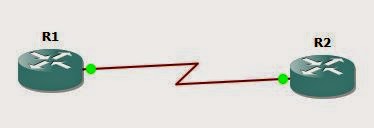
We start with a couple of routers.

PPP default routing

The goal will be for R1 to have a default route in it's routing table, pointing to R2. We start with a basic config:
R1(config)#int s3/0
R1(config-if)#no shut
R1(config-if)#encapsulation ppp
R1(config-if)#ip add 10.1.1.1 255.255.255.0

R2(config)#int s3/0
R2(config-if)#encap ppp
R2(config-if)#ip add 20.1.1.1 255.255.255.0
R2(config-if)#no shut
Now we need R1 to have a default route. We do not have an IGP running between the two, so we cannot do any redistribution or anything like that. We need to look at R1 and see what options we have.
R1(config-if)#ppp ?
  accm              Set initial Async Control Character Map
  accounting        Set PPP network accounting method
  acfc              Options for HDLC Address & Control Field Compression
  authentication    Set PPP link authentication method
  authorization     Set PPP network authorization method
  bcp               Set BCP negotiation options
  bridge            Enable PPP bridge translation
  caller            Caller option when no CLID is available
  chap              Set CHAP authentication parameters
  direction         Override default PPP direction
  disconnect-cause  Set disconnect-cause code
  dnis              Authentication via DNIS before LCP
  eap               Set EAP authentication parameters
  encrypt           Enable PPP encryption
  ipcp              Set IPCP negotiation options
  iphc              Set IPCP Header Compression control options
  ipv6cp            Set IPV6CP negotiation options
  lcp               PPP LCP configuration
  link              Set miscellaneous link parameters
  loopback          PPP loopback options
  max-bad-auth      Allow multiple authentication failures
  max-configure     Number of conf-reqs sent before assuming peer is unable to

R1(config-if)#
We have one called "ipcp". This stands for Internet Protocol Control Protocol. IPCP looks after IP addressing on a PPP link. Within the options for "ppp ipcp" we have:
R1(config-if)#ppp ipcp ?
  accept-address      Accept any non zero IP address from our peer
  address             Additional ipcp address options
  dns                 Specify DNS negotiation options
  header-compression  IPCP header compression option
  ignore-map          Ignore dialer map when negotiating peer IP address
  mask                Specify subnet mask negotiation options
  no-renegotiation    Do not allow client to renegotiate IPCP
  predictive          Predict peers IPCP requests/replies
  route               Install default route thru negotiated peer IP address
  username            Configure how usernames are handled
  wins                Specify WINS negotiation options

R1(config-if)#
So, ppp ipcp route looks like a winner!
R1(config-if)#ppp ipcp route ?
  default  Install default route thru negotiated peer IP address

R1(config-if)#
So the complete command will be:
R1(config-if)#ppp ipcp route default
Let's see what this gets us!
R1(config-if)#do sh ip route | b Gateway
Gateway of last resort is 20.1.1.1 to network 0.0.0.0

S*    0.0.0.0/0 [1/0] via 20.1.1.1
      10.0.0.0/8 is variably subnetted, 2 subnets, 2 masks
C        10.1.1.0/24 is directly connected, Serial3/0
L        10.1.1.1/32 is directly connected, Serial3/0
      20.0.0.0/32 is subnetted, 1 subnets
C        20.1.1.1 is directly connected, Serial3/0
R1(config-if)#
Let's add a loopback interface to R2 and check that we have connectivity:
R2(config-if)#int lo0
R2(config-if)#ip add 2.2.2.2 255.255.255.255
R2(config-if)#

R1(config-if)#do ping 2.2.2.2
Type escape sequence to abort.
Sending 5, 100-byte ICMP Echos to 2.2.2.2, timeout is 2 seconds:
!!!!!
Success rate is 100 percent (5/5), round-trip min/avg/max = 92/113/148 ms
R1(config-if)#
Nice. A little one-liner and we have a default route between two disparate networks.