We are going to move away from the ISE for a moment and look at the WSA and how to permit/deny access to websites based on the name.

This is pretty much the process we will be following:

The user makes a call to www.good.com or www.bad.com, which calls DNS, the traffic then heads via the switch up to the firewall, which will make a WCCP call to the WSA, and the permitted traffic will be passed up, and the denied traffic will get replaced with a denied message.
I can already get to the sites (see: http://www.802101.com/2016/04/ccie-security-lab-access-to-www-server.html):


Here we can change the hostname:


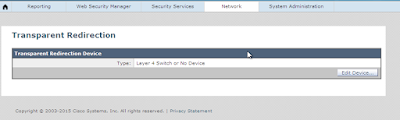
We want it to be WCCP though, so click Edit and set it to WCCP:


I am using a service ID of 100 (just because it's a nice round number), and tell the WSA that we are interested in ports 80, 443 and 12345:


We need two ACLs. One which contains a list of our WCCP servers (the WSA), and one to list the hosts, or networks we want to redirect through the WSA:

At first there was no communication between the ASA and the WSA, but this was due to the password mismatch (see Total Authentication failures below) - so keep it under 7 characters!
The next step is to block www.bad.com, which we will do through a custom URL category:

Click on Add:

Pop in the details and click on Submit. Click on Commit Changes on the next page.

We then need to set up an access policy, and place it above the existing default policy:

The WSA is a bit particular about naming the policy, so keep it simple, and set the URL filtering to the one set up a moment ago:


Our new policy should go at the top:

At this point, www.bad.com is set to "monitor", so let's change that, by clicking on Monitor under the URL filtering, and changing it from this:
 To this:

Click submit, then commit the changes.

Bingo.
Let's kick it up a notch and ONLY have Bob denied this page.
We need to create an identity for Bob, which will be done via his IP address:

Looks good:

Commit that bad boy!
Head back over to the Security Policies, and change the Restrict Bad policy to have just the Bob identity:
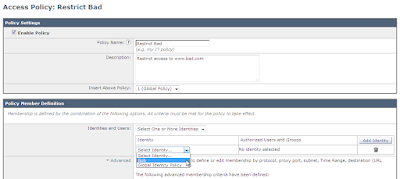
The policy member definition then changes:
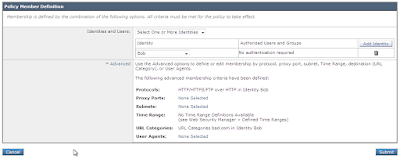
Commit changes and test.
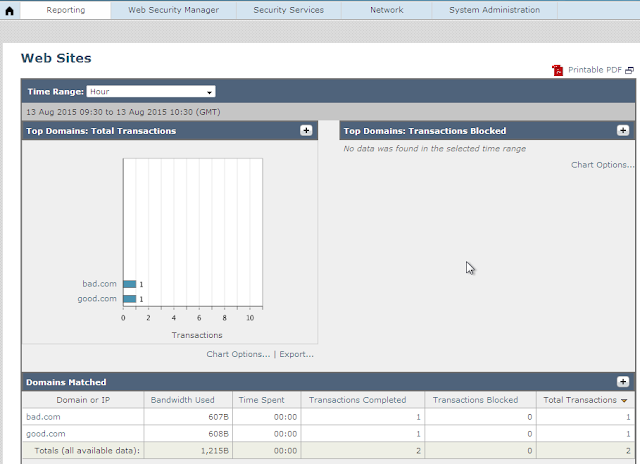
We can see the results here:
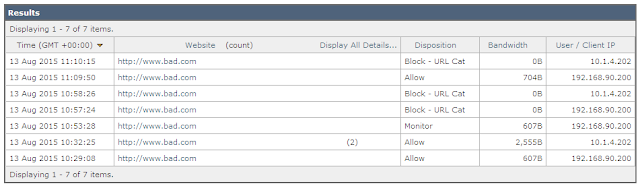
From the bottom up, we can see that initially both the MGMT-PC (192.168.90.200) and Bob (10.1.4.202) has access to the www.bad.com website. We added the URL category, which has a default of Monitor, and then we changed it and both then got blocked. From the last step, the MGMT-PC could access it, but Bob could not.
A resounding success!
It's flawed though. What if Bob changes his IP address? He's a sneaky f*cker like that! Well, we could add authentication instead.
This is an option under "Network":

However, my WSA is not even in same time zone as AD, it's not even in the same year (because of the license). So we can't go down this route.
We'll just have to hope that Bob behaves.
But that is the WSA folks, a quick and dirty look through. It's not overly hard to set up, and this was all done within a couple of hours with just a bit of help from Google. Before we close this post off, here are the full ASA commands (a whopping 5 lines):

This is pretty much the process we will be following:

The user makes a call to www.good.com or www.bad.com, which calls DNS, the traffic then heads via the switch up to the firewall, which will make a WCCP call to the WSA, and the permitted traffic will be passed up, and the denied traffic will get replaced with a denied message.
I can already get to the sites (see: http://www.802101.com/2016/04/ccie-security-lab-access-to-www-server.html):

WSA initial setup
Setup is very straight-forward, just head onto the System Administration menu and select the wizard: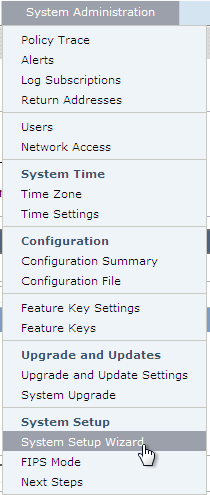
Here we can change the hostname:

And design our topology a little:

It kinda craps out at this point (probably won't do in the lab), but we can save the work so far and set up WCCP another way.
WSA WCCP Service setup
This can all be done via the menu.
The default is Layer-4:


We get a warning telling us that we need to add a service:

I am using a service ID of 100 (just because it's a nice round number), and tell the WSA that we are interested in ports 80, 443 and 12345:

Note that the password can be up to 7 characters, so whilst I put "cisco123", it truncated it. Make sure you commit your changes!

There is our new service:

ASA WCCP Service setup
I prefer to do this partly through the CLI and partly via the GUI. Using the MGMT-PC VM I could not access the https page for LON-FW1 until I ran the following commands:
no ssl encryption des-sha1
ssl encryption rc4-sha1 aes128-sha1 aes256-sha1 3des-sha1
This allowed the PC to get to the page and download ASDM. After AGES (getting updated software), ASDM loaded.
We need two ACLs. One which contains a list of our WCCP servers (the WSA), and one to list the hosts, or networks we want to redirect through the WSA:
LON-FW1(config)# access-list wccp-clients extended permit ip host 192.168.90.200 any
LON-FW1(config)# access-list wccp-clients extended permit ip host 10.1.4.202 any
LON-FW1(config)# end
LON-FW1# sh access-list
access-list cached ACL log flows: total 0, denied 0 (deny-flow-max 4096)
            alert-interval 300
access-list outside->in; 2 elements; name hash: 0x307dc218
access-list outside->in line 1 extended permit ip any any (hitcnt=1783) 0xa1b5c89f
access-list outside->in line 2 extended permit icmp any any (hitcnt=0) 0x6d9415b4
access-list wccp-servers; 1 elements; name hash: 0x7b83fa88
access-list wccp-servers line 1 extended permit ip host 10.1.4.203 any (hitcnt=0) 0x9d0812bf
access-list wccp-clients; 2 elements; name hash: 0x94033d9d
access-list wccp-clients line 1 extended permit ip host 192.168.90.200 any (hitcnt=0) 0x48cd6322
access-list wccp-clients line 2 extended permit ip host 10.1.4.202 any (hitcnt=0) 0xd2ff1466
LON-FW1#
Let's switch over to the GUI and set up WCCP:
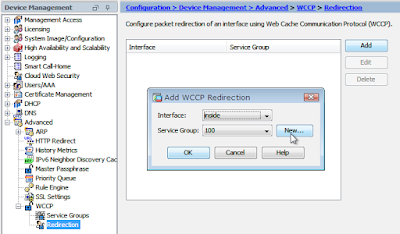
Note that the Dynamic Service Number must match what we set up on the WSA, as does the password, the password can be longer than 7 characters here though. We then set up the redirection:

Let's give it a whirl!
At first there was no communication between the ASA and the WSA, but this was due to the password mismatch (see Total Authentication failures below) - so keep it under 7 characters!
LON-FW1# sh wccp

Global WCCP information:
    Router information:
        Router Identifier:                   -not yet determined-
        Protocol Version:                    2.0

    Service Identifier: 100
        Number of Cache Engines:             0
        Number of routers:                   0
        Total Packets Redirected:            0
        Redirect access-list:                wccp-clients
        Total Connections Denied Redirect:   0
        Total Packets Unassigned:            0
        Group access-list:                   wccp-servers
        Total Messages Denied to Group:      0
        Total Authentication failures:       4
        Total Bypassed Packets Received:     0
LON-FW1#
Once this was corrected, things looked might better:
LON-FW1# sh wccp

Global WCCP information:
    Router information:
        Router Identifier:                   163.4.4.254
        Protocol Version:                    2.0

    Service Identifier: 100
        Number of Cache Engines:             1
        Number of routers:                   1
        Total Packets Redirected:            0
        Redirect access-list:                wccp-clients
        Total Connections Denied Redirect:   0
        Total Packets Unassigned:            0
        Group access-list:                   wccp-servers
        Total Messages Denied to Group:      0
        Total Authentication failures:       4
        Total Bypassed Packets Received:     0
LON-FW1#
Our WSA is taking the traffic:
The next step is to block www.bad.com, which we will do through a custom URL category:

Click on Add:

Pop in the details and click on Submit. Click on Commit Changes on the next page.

We then need to set up an access policy, and place it above the existing default policy:

The WSA is a bit particular about naming the policy, so keep it simple, and set the URL filtering to the one set up a moment ago:


Our new policy should go at the top:

At this point, www.bad.com is set to "monitor", so let's change that, by clicking on Monitor under the URL filtering, and changing it from this:


Click submit, then commit the changes.

Bingo.
Let's kick it up a notch and ONLY have Bob denied this page.
We need to create an identity for Bob, which will be done via his IP address:

Looks good:

Commit that bad boy!
Head back over to the Security Policies, and change the Restrict Bad policy to have just the Bob identity:

The policy member definition then changes:
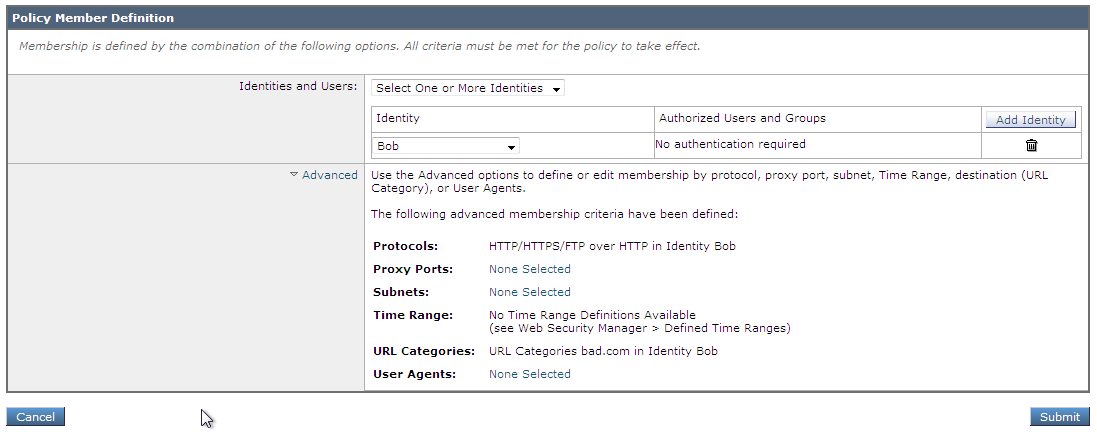
Commit changes and test.
We can see the results here:

From the bottom up, we can see that initially both the MGMT-PC (192.168.90.200) and Bob (10.1.4.202) has access to the www.bad.com website. We added the URL category, which has a default of Monitor, and then we changed it and both then got blocked. From the last step, the MGMT-PC could access it, but Bob could not.
A resounding success!
It's flawed though. What if Bob changes his IP address? He's a sneaky f*cker like that! Well, we could add authentication instead.
This is an option under "Network":

However, my WSA is not even in same time zone as AD, it's not even in the same year (because of the license). So we can't go down this route.
We'll just have to hope that Bob behaves.
But that is the WSA folks, a quick and dirty look through. It's not overly hard to set up, and this was all done within a couple of hours with just a bit of help from Google. Before we close this post off, here are the full ASA commands (a whopping 5 lines):
LON-FW1# sh run | i wccp
access-list wccp-servers extended permit ip host 10.1.4.203 any
access-list wccp-clients extended permit ip host 192.168.90.200 any
access-list wccp-clients extended permit ip host 10.1.4.202 any
wccp 100 redirect-list wccp-clients group-list wccp-servers password *****
wccp interface inside 100 redirect in
LON-FW1#
Laters.


